
Short answer: an Elementor form not sending email is usually caused by one of four things. The “Email” action is missing or has the wrong address, the “From” address is not on your own domain, WordPress is sending mail through the web server instead of a proper SMTP service, or your domain has no SPF and DKIM records, so Gmail and Outlook drop the message. Installing an SMTP plugin and using a From address on your own domain fixes most cases.
A broken contact form is one of the most expensive problems a business can have, because nobody notices. Visitors think they contacted you. You think nobody is enquiring. This guide walks through the checks we use, in order, from the quickest to the most technical, and ends with a complete SMTP setup you can copy.
First: is the Elementor form broken, or only the email?
These are two different problems, so find out which one you have before changing anything.
- The form shows an error or keeps spinning after you press send: the form itself is failing. Jump to the section on forms that do not submit.
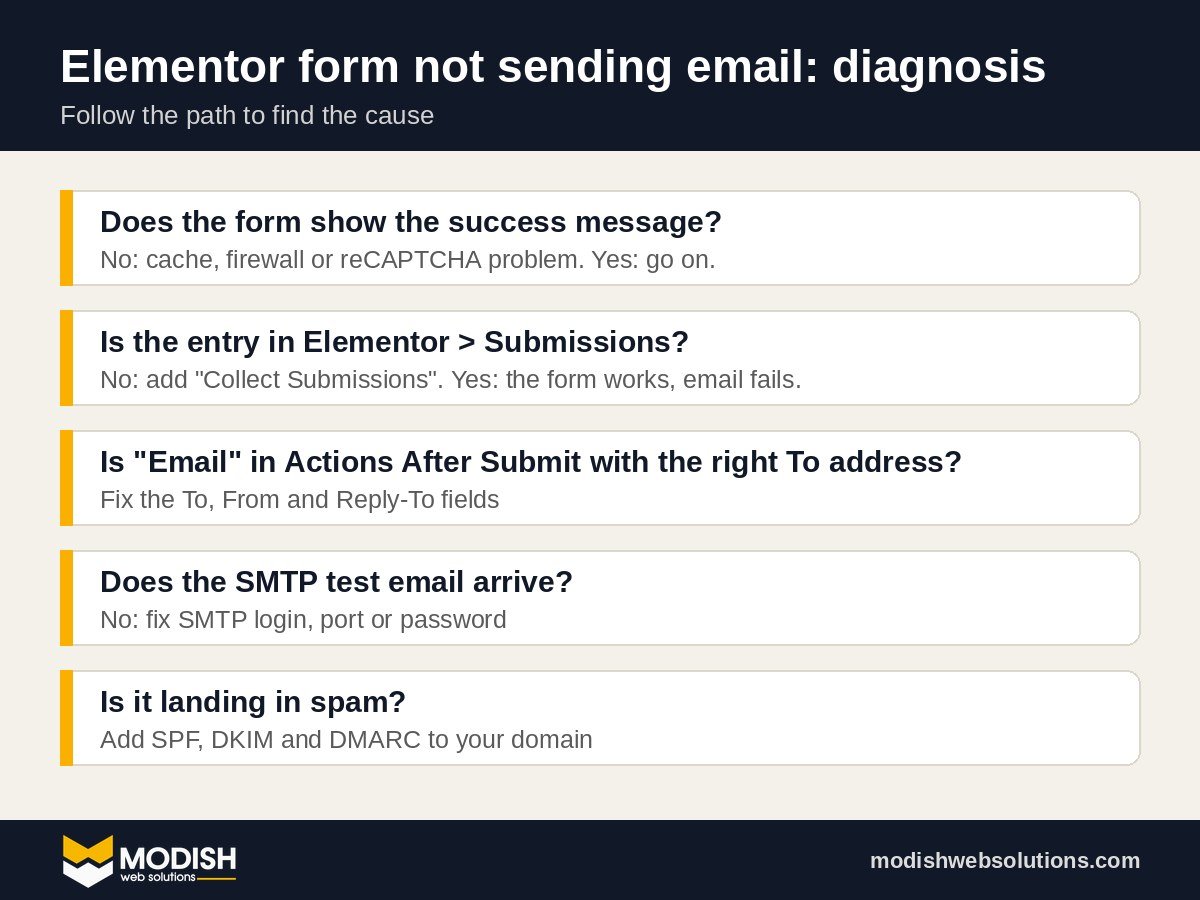
- The form shows the success message but no email arrives: the Elementor form works and the email delivery is the problem. Keep reading.
If you have Elementor Pro, go to Elementor → Submissions in your WordPress dashboard. If your test entry is listed there, the form is saving data correctly and only the email is failing. (Submissions only appear if “Collect Submissions” is added under Actions After Submit.)
Step 1: Check the “Actions After Submit” settings
Open the page in Elementor, click the form, and look at Actions After Submit in the Content tab. “Email” must be in the list. If it is missing, add it. Then open the Email section and check:
- To: the inbox you actually read. It sounds obvious, but this is the most common problem we find. In one site audit this month, every Elementor form on the website was sending leads to a former developer’s personal Gmail. The owner had no idea for months.
- From Email: an address on your own domain, such as
noreply@yourdomain.com. Never a Gmail or Hotmail address (more on this below). - Reply-To: set it to the visitor’s email field, so you can reply to the lead with one click.
If you also use “Email 2” (a confirmation email to the visitor), check those fields too, including Reply-To. Old addresses often hide there. In the audit above, the main To address was correct on some pages, but “Email 2” and its Reply-To still pointed to the old developer.
Step 2: Use a From address on your own domain
If the From address is someone@gmail.com but the email is sent by your website server, Gmail sees a message that claims to be from Gmail but did not come from Gmail. It treats that as spoofing and often blocks it. Use an address on your website’s domain instead. It does not need to be a real inbox, as long as the domain is yours.
Step 3: Install an SMTP plugin (the main fix for an Elementor form not sending email)
By default, WordPress sends email with the server’s built in mail function. Many hosts limit it, and big email providers do not trust it. An SMTP plugin makes WordPress send email through a real mail service, which is the single biggest fix.
- Install a plugin such as WP Mail SMTP or FluentSMTP.
- Connect it to a mail service: your domain email from your host, Google Workspace, Microsoft 365, or a transactional service like Brevo or SendGrid.
- Set the From Email in the plugin to the same domain address you used in Elementor.
- Send a test. In WP Mail SMTP this is under WP Mail SMTP → Tools → Email Test.
If the test email arrives but the form email does not, go back to Step 1. If the test also fails, the plugin will usually show the exact error, such as a wrong password or a blocked port.
Example: SMTP settings for Hostinger email
Many small business sites are hosted with Hostinger, so here are the exact values. Other hosts work the same way; only the server name changes. Hostinger lists these on its email configuration page.
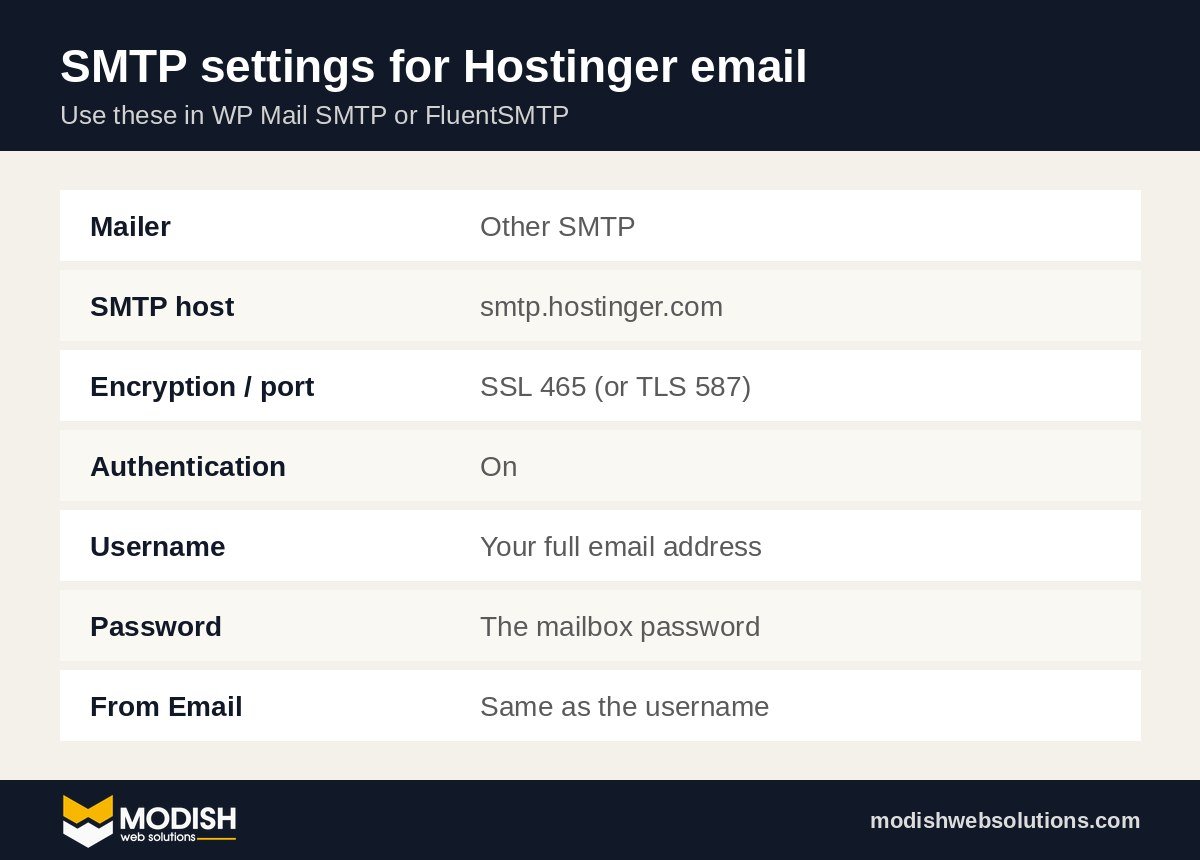
| Setting | Value |
|---|---|
| Mailer | Other SMTP |
| SMTP host | smtp.hostinger.com |
| Encryption and port | SSL on port 465 (or TLS on port 587 if SSL gives errors) |
| Authentication | On |
| Username | Your full email address, for example info@yourdomain.com |
| Password | The password of that email account |
| From Email | The same address as the username |
Create the mailbox in hPanel under Emails first, then copy the details into the plugin. Use the mailbox password, not your hosting login.
Using Gmail or Google Workspace instead?
If your business email runs on Google Workspace, you do not need your host’s mail server at all. In WP Mail SMTP, choose the Google / Gmail mailer and connect your Workspace account. It uses Google’s secure sign-in instead of a password, and email from your site is then sent by Google itself, which Gmail recipients trust.
Two things to remember. First, set the From Email to an address in your Workspace domain, not a free @gmail.com address. Second, add Google’s SPF and DKIM records to your domain from the Google Admin console, otherwise messages can still be marked as spam. If you use Microsoft 365, the Outlook mailer in WP Mail SMTP works the same way.
Step 4: Add SPF, DKIM and DMARC records to your domain
Gmail and Yahoo now require senders to authenticate their email. Without SPF or DKIM, messages from your site can land in spam or disappear. Google explains the rules in its email sender guidelines.
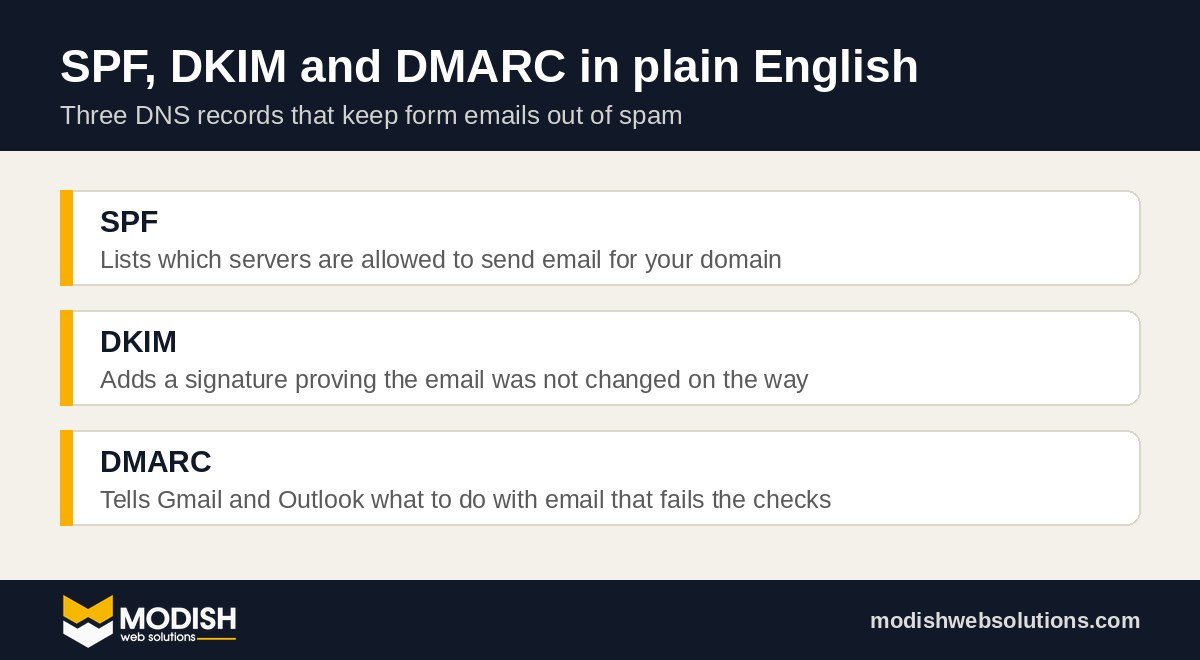
- SPF lists which servers may send email for your domain. Google’s guide: set up SPF.
- DKIM adds a signature that proves the message was not changed. Your mail service gives you the record to add.
- DMARC tells receivers what to do with mail that fails the checks. Start with a simple monitoring policy such as
v=DMARC1; p=none.
You add these as TXT records in your domain’s DNS (in Hostinger, Cloudflare, GoDaddy or wherever your domain is managed). Your SMTP provider will show the exact values.
Step 5: Check spam folders and filters
Search your inbox and spam folder for the form’s subject line. If you find it in spam, mark it “Not spam” and add the From address to your contacts. Also check for inbox rules that move or archive messages automatically, especially in shared or team inboxes.
What if the Elementor form does not submit at all?
If the button keeps spinning or shows an error, the problem is on the website itself. Check these in order:
- Caching and minification: clear your cache plugin and, if it combines or delays JavaScript, exclude Elementor’s scripts and test again.
- reCAPTCHA: if you use it, make sure the site key and secret key match your domain and the reCAPTCHA version you selected in Elementor.
- Security plugins and firewalls: some block requests to
admin-ajax.php, which Elementor forms use to submit. - Plugin conflicts: temporarily deactivate other plugins on a staging copy and test after each one.
- Required fields hidden by design: a required field that is hidden on mobile can stop the form from sending.
Quick diagnosis table
| What you see | Most likely cause | Fix |
|---|---|---|
| Success message, no email anywhere | Wrong To address or no Email action | Step 1 |
| Email arrives in spam | No SMTP, no SPF/DKIM | Steps 3 and 4 |
| Email never arrives at Gmail but arrives elsewhere | From address is a Gmail address, or no authentication | Steps 2 and 4 |
| Button keeps spinning | Cache, firewall or reCAPTCHA issue | Form not submitting section |
| Worked before, stopped suddenly | Host mail limits, expired SMTP password, or plugin update | Step 3 email test |
How to test your Elementor form properly
A proper test takes five minutes and catches most problems before your customers do:
- Open the page in a private browser window on your phone, not while logged in to WordPress.
- Submit the form with a real email address you can check, and a message like “Test from mobile, 3pm”.
- Check the To inbox, the spam folder and Elementor → Submissions.
- Reply to the email and make sure the reply goes to the visitor’s address, not to your own site.
- Repeat on every page that has its own form. Each Elementor form has its own settings, so fixing one does not fix the others.
How to stop this from happening again
- Send a test enquiry from your own phone once a month.
- Keep “Collect Submissions” on, so leads are saved in WordPress even if an email fails.
- Add spam protection that does not annoy real visitors, such as Elementor’s honeypot field.
- Write down which email address receives leads, and update every form when staff or agencies change.
- After any plugin, theme or hosting change, submit one test enquiry the same day. Most silent form failures start right after an update or a move to a new host.
- If several people need the lead, add them in the To field separated by commas instead of forwarding emails by hand.
Common SMTP error messages and what they mean
When the email test fails, WP Mail SMTP and FluentSMTP show an error. Here is what the most common ones usually mean:
- “Could not authenticate” or “Authentication failed”: the username or password is wrong. Use the full email address as the username and the mailbox password, not your hosting or WordPress password.
- “Connection timed out” or “Could not connect to SMTP host”: the port is blocked or wrong. Try port 587 with TLS instead of 465 with SSL, or ask your host if outgoing SMTP is allowed.
- “Sender address rejected” or “550” errors: the From address does not belong to the mailbox you logged in with. Make the From Email the same as the SMTP username.
- “Daily sending limit exceeded”: your mailbox or host has a sending cap. Use a transactional email service for higher volumes.
A backup so you never lose a lead again
Email should not be the only place your leads live. Elementor Pro forms can also send every submission to other tools:
- Collect Submissions: stores every entry in WordPress, so you can always check it.
- Webhook: sends the lead to a CRM such as GoHighLevel or HubSpot, or to Zapier or Make, which can add it to a Google Sheet or post it in Slack.
- Email marketing integrations: add the contact to Mailchimp, ConvertKit or a similar list at the same time.
With a CRM connected, the lead gets an instant reply and lands in your pipeline even on a day the email fails. We set this up for clients through our GoHighLevel and automation services.
Need your Elementor form fixed today?
If you would rather not touch DNS records or SMTP settings, we can do it for you. Our team builds and maintains WordPress and Elementor websites every day. Book a free strategy call or message us on WhatsApp, and we will find out exactly why your Elementor form is not sending email. If your site is getting visitors but still no enquiries, read why your website is not getting leads.
Frequently asked questions
Why is my Elementor form not sending email to Gmail?
Most often because the From address is a Gmail address or your domain has no SPF and DKIM records. Gmail blocks or spams mail that is not properly authenticated. Use a From address on your own domain and send through an SMTP plugin.
Does Elementor save form submissions?
Yes, in Elementor Pro, if “Collect Submissions” is added under Actions After Submit. You can see them under Elementor → Submissions in the WordPress dashboard.
Do I need an SMTP plugin for Elementor forms?
It is strongly recommended. Without one, WordPress sends mail through the web server, which many hosts limit and many email providers do not trust.
Why did my Elementor form suddenly stop sending emails?
Common causes are a changed or expired email password in your SMTP settings, a hosting limit on outgoing mail, a plugin update, or a change in who receives the form emails. Run an SMTP test email first to narrow it down.